
How to Sign In to a Telegram Account: Code Link or TDATA File Pack
October 19, 2026
BuyTelegramAccounts Support Desk· Customer support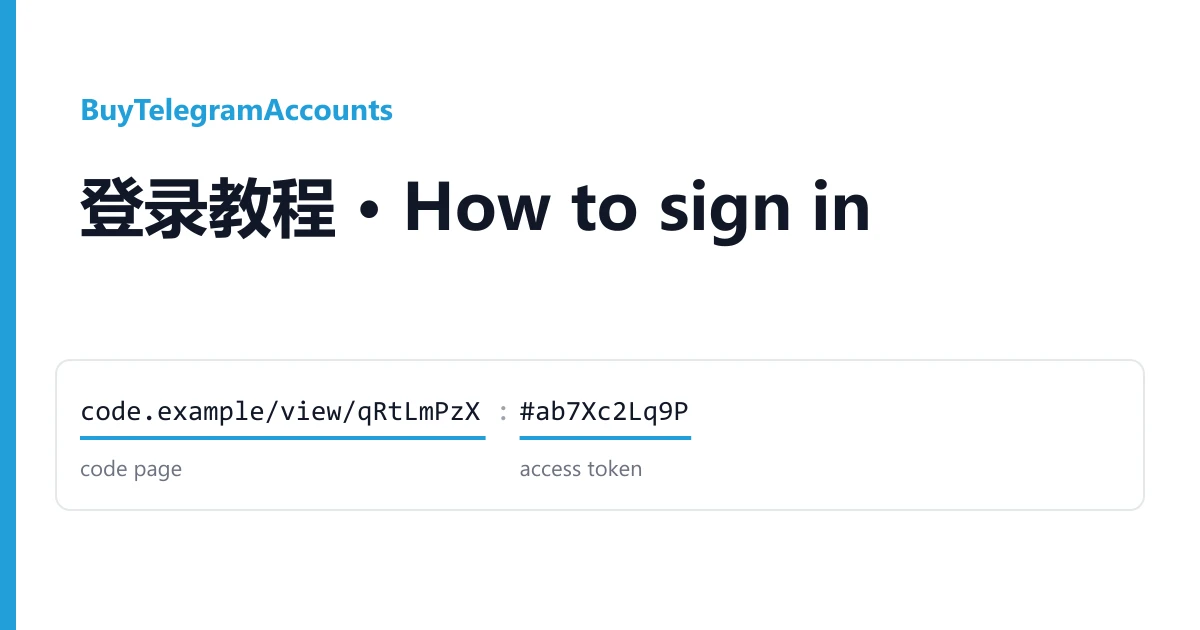
Telegram accounts from BuyTelegramAccounts come in two forms; the listing title says which. "Login via code reception": you sign in yourself, and a link shows the code Telegram sends. TDATA / SESSION / JSON: a file pack, already signed in.
Reading your line
A code-login order looks like this:
https://code.example/view/qRtLmPzX#ab7Xc2Lq9PvW
code page link            # access token
Copy the whole line, including the part after #; without it the page opens empty. Some listings give the area code and phone number in front of the link. If yours is the link alone, open it and take the number from the page.
A file-pack order is a download link to an archive: a tdata folder, .session and .json files, and on 2FA listings the cloud password in a file like Password2FA.txt.
Signing in
With a code link
- In Telegram, sign in with a phone number and type the number.
- When Telegram says the code was sent, open your link, wait about ten seconds and refresh until the code shows.
- Enter the code. Telegram then asks for the secondary password; it is on the same page.
- Stay signed in on at least one device. Later codes go to a signed-in device, so logging out everywhere can lock you out.
With a file pack
- Download the portable Telegram Desktop from telegram.org. It is not in the archive.
- Unpack the archive and put the
tdatafolder next toTelegram.exe, replacing the one there. - Start
Telegram.exe; it opens signed in. The.sessionand.jsonare for session software only.
Use one private proxy per account, never a public proxy or VPN.
When it does not work
The code page stays empty. Refresh a few more times, then ask Telegram to resend once, only once.
Telegram Desktop shows the login screen. The tdata folder is not next to Telegram.exe, or the copy of the app is not fresh.
Messages to strangers fail. A new account can carry a geo spam limit. Check with @SpamBot; it often lifts by itself in a couple of days.
Warranty
If an account does not work as its listing says, open a ticket from your order page within the warranty window shown on the listing. Name the account (the phone number is enough) and attach a screenshot. It is replaced from the same listing, or refunded if the listing has run out. Signing in never voids the warranty. Bans caused by bulk or automated activity are not covered. More in the catalogue.