
How to Use a TDATA Telegram Account on Your Phone
October 19, 2026
BuyTelegramAccounts Support Desk· Customer support
A TDATA pack from BuyTelegramAccounts opens in Telegram Desktop on a computer. There is no file you can copy to a phone. To use the account on your phone too, you sign in on the phone with the account's number, and the login code comes to the desktop you already have open. Set the desktop up first with the main sign-in guide.
What you need
- Telegram Desktop running with the account, signed in and online.
- The official Telegram app on your phone.
- The cloud password, only if your listing has 2FA. It is in a text file in the pack, named like
Password2FA.txt.
Steps
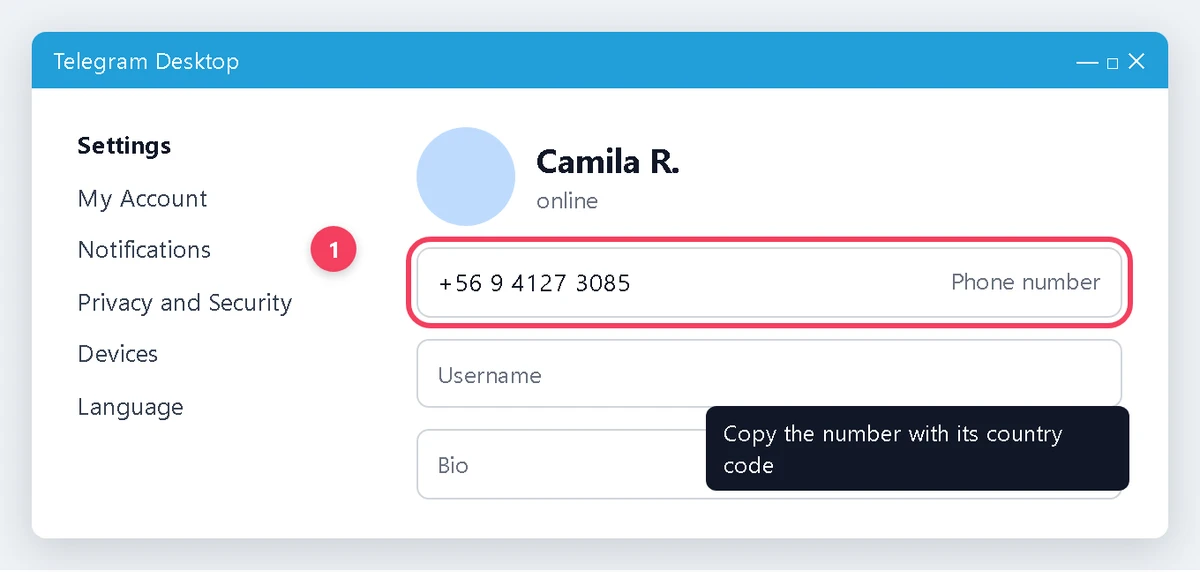
- In Telegram Desktop open Settings. The account's phone number is under the name. Copy it with the country code.
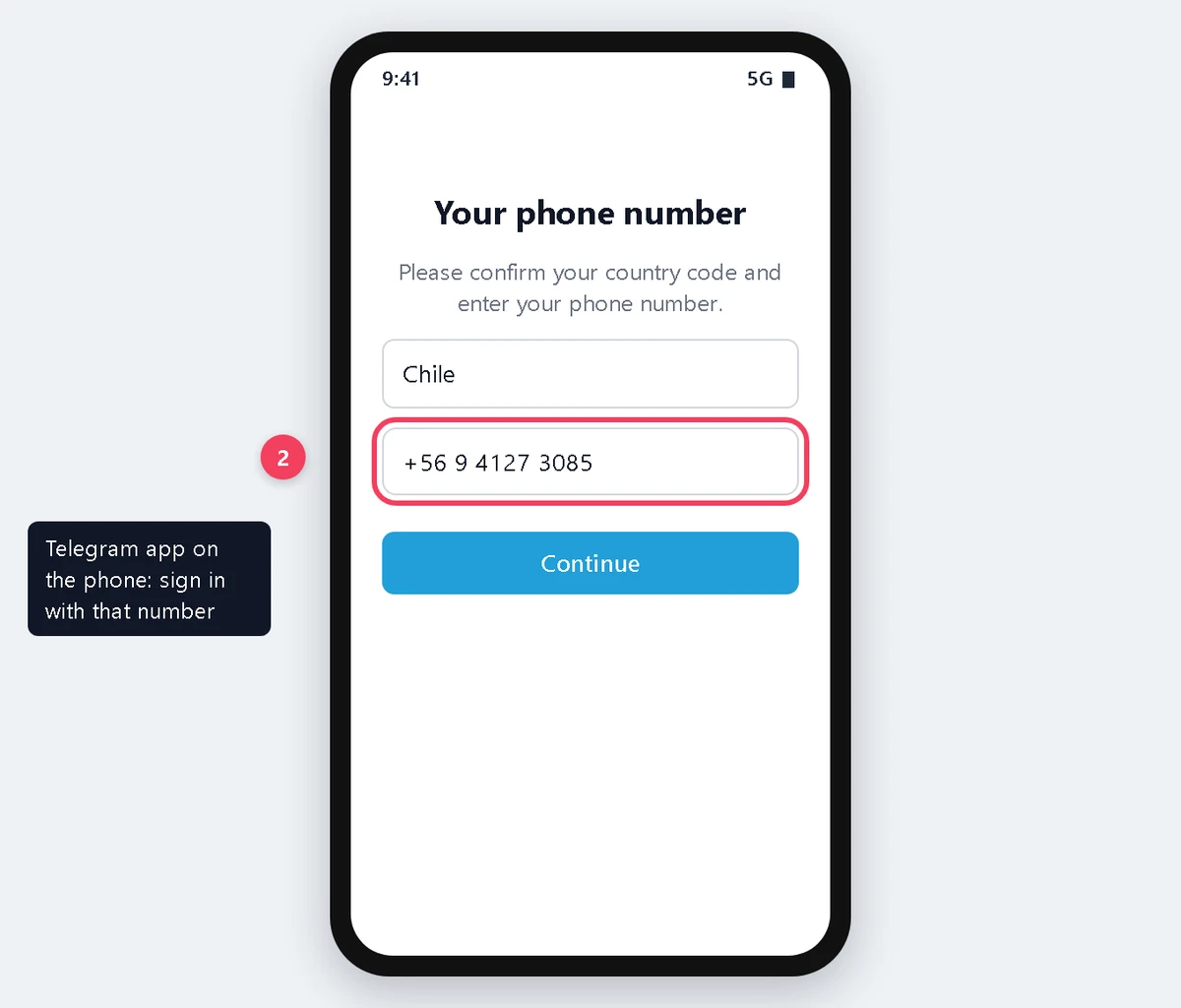
- On the phone, open Telegram, choose to sign in with a phone number and enter that number.
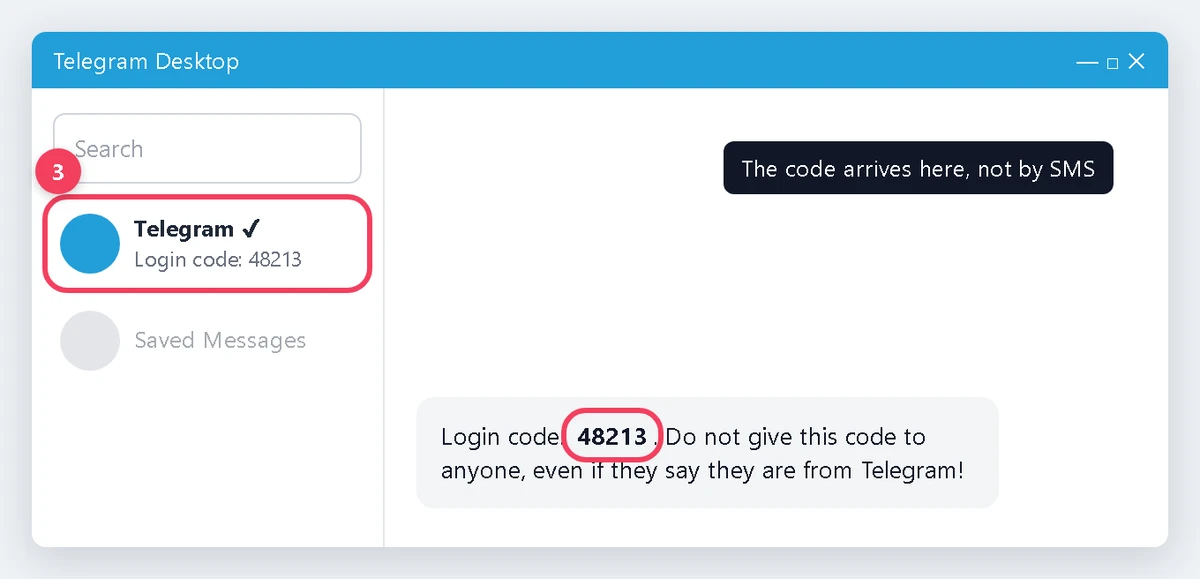
- Go back to the desktop. A message from Telegram with a blue check holds a five-digit login code. It does not come by SMS.
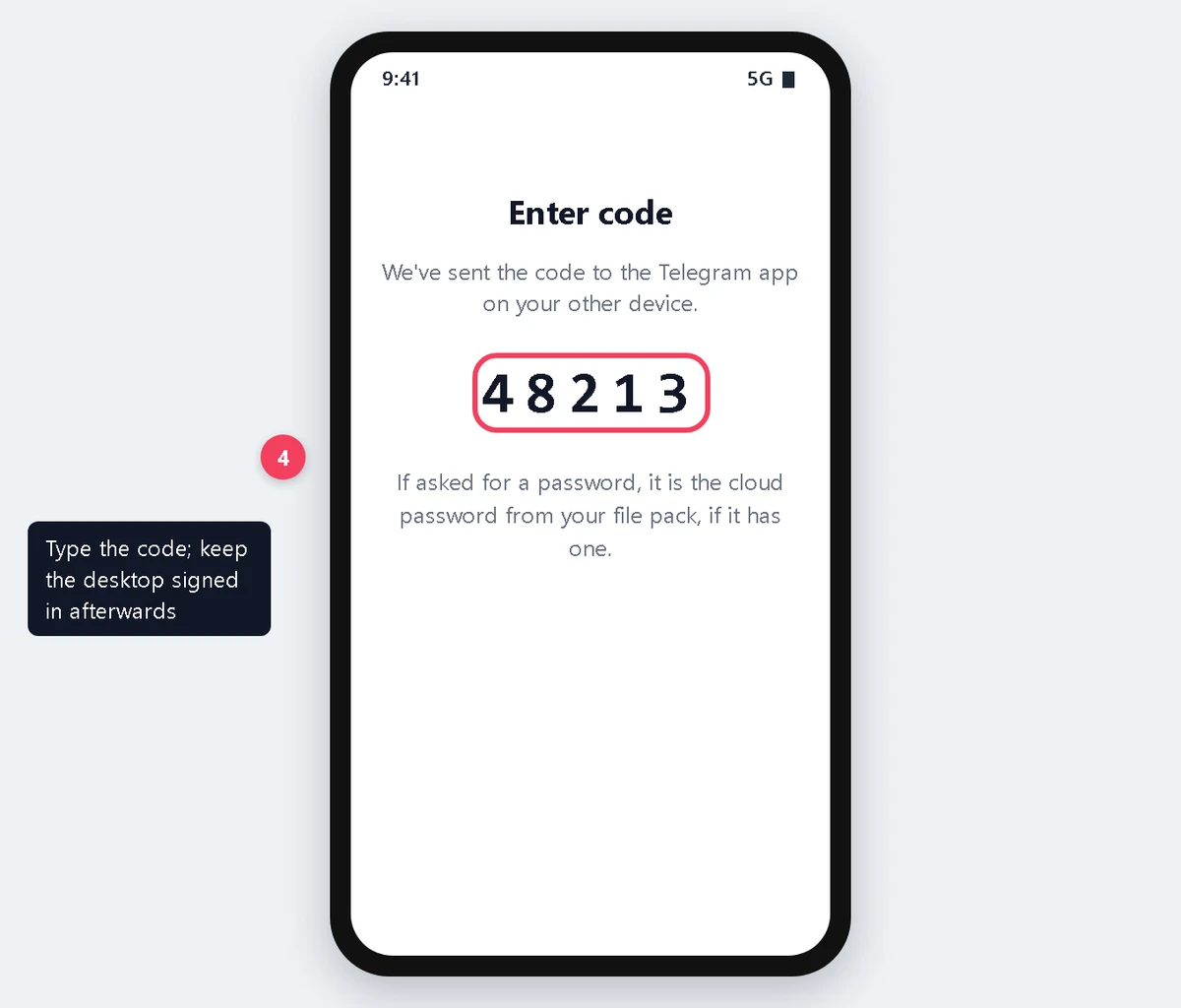
- Type the code on the phone. If it asks for a password, use the cloud password from the pack.
When it does not work
No message on the desktop. Check that Telegram Desktop is online, wait a minute, and ask the phone to resend the code once.
The phone says the code went by SMS. The desktop was not signed in at that moment. Open it, then start again on the phone.
You cannot end the other sessions. A new session has to wait 24 hours before it can end others. That is normal.
Keep the desktop signed in afterwards. Later codes go to a signed-in device, so logging out everywhere can lock you out. Use the phone on a clean, stable connection, and keep the first days to light, normal use.
Warranty
If an account does not work as its listing says, open a ticket from your order page within the warranty window shown on the listing. Name the account (the phone number is enough) and attach a screenshot. It is replaced from the same listing, or refunded if the listing has run out. Signing in never voids the warranty. Bans caused by bulk or automated activity are not covered. More in the catalogue.